
Guide
Channels, Subscriptions and Playlists in SmartTube
Channels, subscriptions and playlists in SmartTube: subscribe inside the app, build Watch Later lists, and keep a subscriptions feed that opens every evening.

Contents On this page
SmartTube is at its best when the subscriptions feed does the choosing. Subscribe to channels inside the app, save videos to playlists, and the home screen becomes a menu of things you already like, instead of a scroll of things you might like. This guide covers channels, subscriptions and playlists, with and without an account. The install is on the SmartTube app home page if you are starting fresh.
Subscribing inside the app
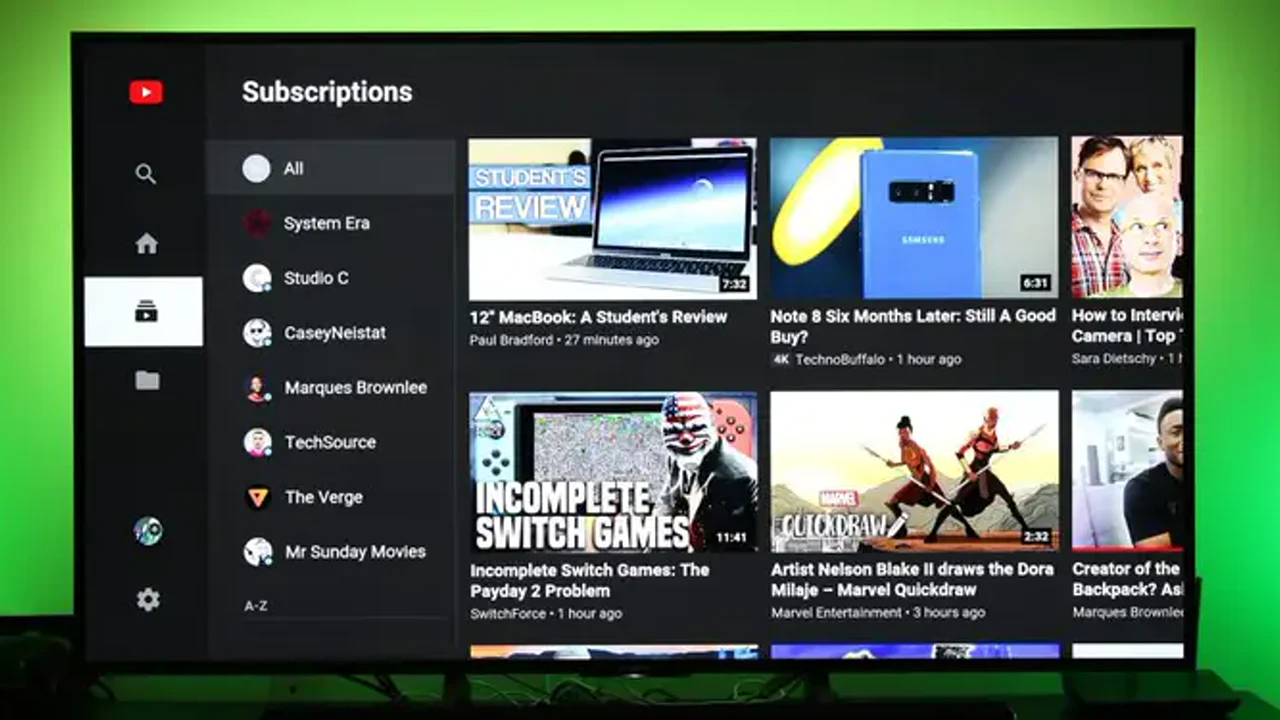
Open a channel and press Subscribe. The channel joins your subscriptions, and its new videos appear in your subscriptions feed. No account is needed, because the subscription lives on the TV itself. Unsubscribe from the same place, and the channel leaves the feed without a trace.
The subscriptions feed
The subscriptions feed is the first screen to open in the evening. It shows the newest videos from your channels in order, with nothing else mixed in, which is the difference between a feed and a home page. Check it first, and the home grid becomes the second choice, for the nights when the feed is quiet.
Watch Later that actually gets watched
Save a video to Watch Later from the long press menu on its thumbnail, and it waits in a list you can open from the Library. The trick is to keep the list short: save what you will watch this week, and clear the rest, because a list of two hundred videos is a list nobody opens. A short list gets watched, and the family movie night guide shows how a shared list works for a household.
Making playlists for moods and rooms
Make a playlist for each mood: one for evening films, one for morning talks, one for music while cooking. Add videos from the long press menu, name the playlist plainly, and open it from the Library when the mood strikes. Playlists turn a scattered set of saves into a shelf, and a shelf is easier to browse than a pile.
Channel pages and what they hold
Open a channel page to see its videos, its playlists, and its about section. The videos tab lists everything newest first, the playlists tab shows the collections the creator made, and the about section holds links and a description. Browsing a channel page is the fastest way to catch up with a creator you just found.
Signed in vs local subscriptions
Sign in with a Google account and your subscriptions sync from your account, so a new TV feels familiar on the first evening. Stay signed out and the subscriptions live only on the TV, which suits a shared set. You can move between the two: sign in to pull your list across, then sign out again, and the local list stays. The no account guide explains the trade offs in full.
Keeping the feed tidy
Unsubscribe from channels you no longer watch, because a feed of fifty channels you ignore buries the five you love. Once a month, open the subscriptions list, remove the quiet ones, and the feed sharpens immediately. A tidy feed is the difference between opening SmartTube and knowing what to watch, and opening it and scrolling.
Conclusion
Channels, subscriptions and playlists turn SmartTube from a video player into your shelf. Subscribe inside the app, keep Watch Later short, build a playlist per mood, and tidy the feed monthly. The evenings then choose themselves, which is the whole point of a subscriptions feed.
Quick Answers
Can I subscribe to channels without a Google account?
Yes. Subscriptions live inside SmartTube on the TV, and new videos from those channels appear in your subscriptions feed.
Where is my Watch Later list?
In the Library, reached from the left rail. Save videos from the long press menu on any thumbnail.
Do playlists sync between devices?
Only if you sign in with a Google account. Local subscriptions and playlists stay on the TV where you made them.
How do I tidy a noisy subscriptions feed?
Open the subscriptions list once a month and remove channels you no longer watch. The feed sharpens immediately.