
Guide
SmartTube Not Working? Fixes for Buffering, Crashes and Sign In Errors
SmartTube not working on your TV? Fix buffering, crashes on launch, sign in errors and no sound with these checks, in the order that solves most cases.

Contents On this page
SmartTube is steady on most TVs, but when it misbehaves it usually fails in one of four ways: endless buffering, a crash on launch, a sign in error, or silence where sound should be. The fixes below run in the order that solves most cases, cheapest first, and each one takes a minute. If you have not installed it yet, the SmartTube APK home page is the starting point, then come back here when it is on the TV.
Buffering: check the network before the app
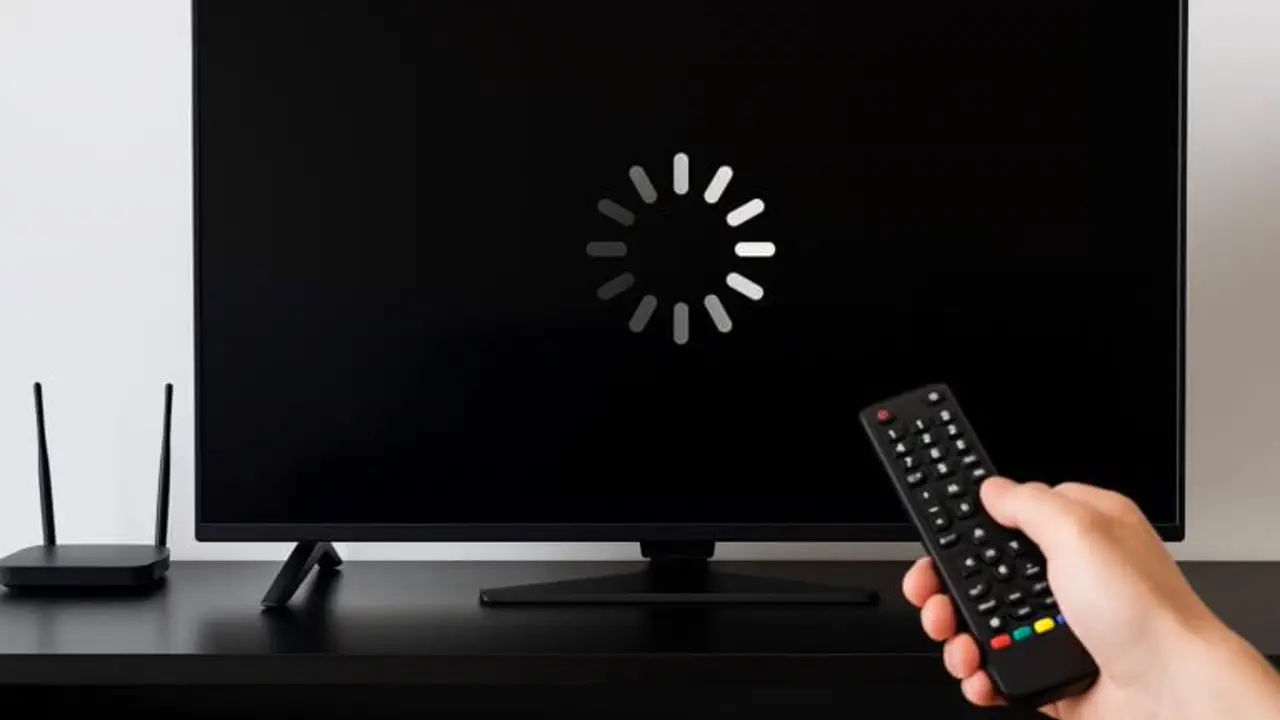
Buffering is almost always the network. Run a speed test on the TV if it has a browser, or simply drop the video quality to 1080p mid playback and see whether the spinning stops. If it does, the connection is the limit, not the app. Move the TV closer to the router, or switch the TV from 2.4 GHz Wi Fi to 5 GHz, and the buffering often clears without touching SmartTube at all.
Crash on launch: clear cache, then data
If SmartTube closes the moment it opens, open Settings on the TV, then Apps, then SmartTube, and choose Clear Cache. Open the app again. If it still crashes, go back and choose Clear Data, which resets the app to a fresh state, and sign in again if you use an account. Clearing data also clears your local settings, so write down any quality or SponsorBlock choices you changed before you do it.
Sign in errors: the code and the clock
Sign in uses a code shown on the TV that you enter on your phone, and two things break it. The first is an expired code, so generate a fresh one on the TV rather than retrying the old one. The second is a TV clock that is wrong, because the sign in check compares times; open the TV date and time settings and set them to automatic. If it still fails, you can simply skip signing in, since SmartTube works fully without an account, as the no account guide explains.
No sound: the TV audio path
When the picture plays with no sound, check the TV before the app. Press volume up on the TV remote, not just the SmartTube controls, and check the TV is not muted or sending sound to a soundbar that is off. Then try a different video, because a single video can have a broken audio track. If every video is silent, restart the TV once, which resets the audio path, and the sound usually returns.
A video that will not play at all
One video refusing to play while others work is usually that video, not your TV: it may be region restricted, removed, or age gated. Try the same video in a browser on your phone to confirm. If no video plays, check the connection, then clear the app cache as above. The 4K buffering guide covers the codec and quality checks for videos that start but never settle.
When to update or reinstall
If the fixes above do not help, install the current release over the old one, which keeps your settings. Only uninstall first if the install over the top refuses, because uninstalling wipes your settings and subscriptions. The update guide walks through installing over the top, and it is the safer path for a TV that otherwise works.
Still stuck after all of that
Restart the TV, not just the app, because a TV that has been on for weeks holds stale network and memory state. After the restart, open SmartTube, play a short video at 1080p, and watch whether it holds. If it holds, raise the quality step by step. If it fails at every quality, the network or the TV itself is the problem, and a different video app will fail the same way, which tells you where to look next.
Conclusion
Most SmartTube problems are network, cache or clock problems wearing an app costume. Work through the list in order, restart the TV once, and the app usually comes back on its own. The fixes that fail tell you something too: they point at the network or the TV, not the app.
Quick Answers
Why does SmartTube buffer on every video?
Usually a slow or crowded Wi Fi connection. Drop to 1080p to confirm, then move the TV to 5 GHz Wi Fi or closer to the router.
Why does SmartTube crash when I open it?
Clear the app cache in the TV settings first. If it still crashes, clear data to reset the app, then sign in again if needed.
SmartTube signed me out. What do I do?
Sign in again with a fresh code from the TV, and check the TV clock is set to automatic. Or skip signing in, since the app works without an account.
Is there sound but no picture, or picture but no sound?
Picture with no sound is usually the TV audio path: check TV volume, mute, and any soundbar. No picture with sound points at the video or codec, so try another video first.