
Guide
SmartTube Picture Settings: 8K, HDR and Playback Speed Explained
SmartTube plays up to 8K with HDR and full playback speed control. Set a default quality, pick per video, and keep motion smooth on any TV.

Contents On this page
SmartTube gives you more picture control than the YouTube app on TV, and the settings are one press away during playback. Resolution up to 8K, HDR where your TV supports it, and playback speed from slow to fast, all from the player bar. This guide explains what each setting does and what to pick for your TV and your connection. The feature list lives on the SmartTube TV app home page if you want the short version.
Resolution up to 8K
SmartTube offers resolutions up to 8K on TVs and boxes that can show them. In practice most living rooms watch at 4K or 1080p, because that is what the TV and the connection honestly support. Picking 8K on a 1080p TV changes nothing on screen, and picking 4K on a slow connection buys you buffering instead of detail. Match the resolution to the TV first, then to the connection.
HDR where your TV supports it
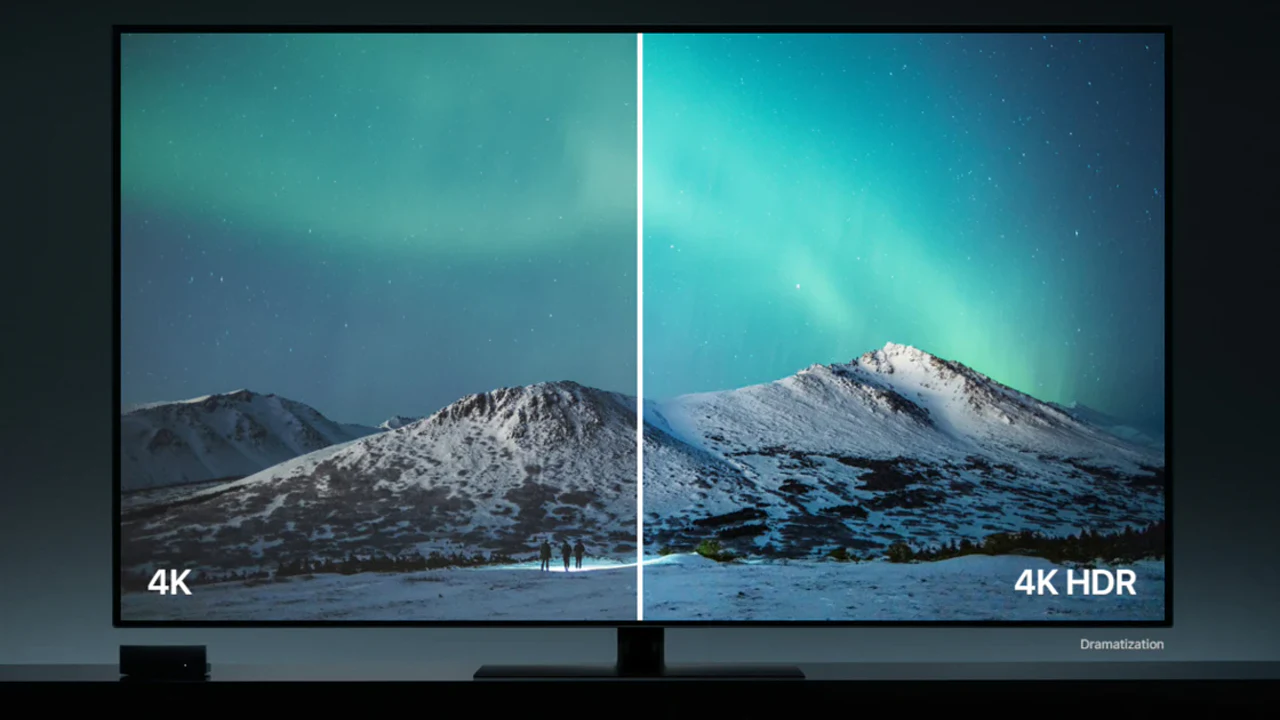
HDR is the setting that changes how a picture feels, more than raw resolution does. It widens the bright and dark range, so sunsets and night scenes hold detail instead of flattening out. SmartTube passes HDR through when the video has it and the TV supports it, and the TV usually shows a small HDR badge when it switches. If your TV never shows that badge, the panel may not support HDR, and no setting in the app will add it.
Setting a default quality
Open Settings, then Video Quality, and pick the default resolution for Wi Fi and for mobile data if your TV uses a hotspot. A good default is the highest resolution your connection holds without buffering: 4K on fast fibre, 1080p on average broadband, 720p on a weak link. The default applies to every video until you change it mid playback, which is the right level of control for a shared TV.
Changing quality mid video
During playback, open the player settings and pick a different resolution. The video switches within a few seconds without restarting, so you can drop from 4K to 1080p the moment buffering starts, or jump up when the connection settles. This is the single most useful habit on a busy evening network, and it beats waiting for the player to guess. If buffering keeps returning, the 4K buffering fixes guide walks through the network checks.
Playback speed that stays natural
Playback speed runs from 0.25x to 2x, and SmartTube keeps voices sounding natural as the speed changes, so a talk at 1.5x is still easy to follow. The speed setting sticks for the session, and you can change it from the player without stopping the video. Talks, tutorials and podcasts suit 1.25x or 1.5x, while films and music are best left at normal speed, where the timing is part of the work.
Codecs and smooth motion
Behind the resolution sits the codec, and SmartTube lets the TV pick the best one it supports, usually VP9 or AV1 for high resolutions. If a video stutters while the connection is fine, the codec is often the cause, especially on older boxes. Try dropping one resolution step, which usually switches the codec too, and the stutter often clears. The older Android TV guide covers what to expect from early hardware.
A sane setup for most evenings
For most homes the right setup is simple: default quality 1080p or 4K to match the TV, HDR left on, and speed at normal unless the video is a talk. Set it once, then change it only when the picture tells you to. The goal is a TV you never have to think about during a film, and these three settings get you there.
Conclusion
Picture settings in SmartTube reward one honest look at your TV and your connection. Match the resolution to both, leave HDR on where the panel supports it, and use speed for talks rather than films. After that the settings fade away, which is exactly what good settings should do.
Quick Answers
Does SmartTube really play 8K?
Yes, up to 8K on TVs and boxes that support it. Most viewers watch at 4K or 1080p, which matches their TV and connection.
How do I know HDR is working?
Your TV usually shows a small HDR badge when it switches into HDR mode. If no badge appears, the panel may not support HDR.
What playback speeds does SmartTube offer?
From 0.25x to 2x, with natural sounding voices. The speed sticks for the session and can change mid video.
Why does 4K buffer on my TV?
Usually the connection, not the app. Drop to 1080p mid video and the buffering should stop, then check the network steps in the buffering guide.