
Guide
SmartTube Background Play and Picture in Picture on TV
Background play and picture in picture in SmartTube: keep a talk playing while you browse, and what to expect when you leave the app on a TV.

Contents On this page
Background play means the video keeps playing when you leave the app, and picture in picture means it keeps playing in a small window while you do something else. On a TV both are narrower than on a phone, because a TV is a single screen for watching, not a multitasking device. This guide explains what SmartTube offers and how to use it. The feature list is on the SmartTube TV app home page.
What background play means on a TV
On a TV, background play usually means the audio keeps going while the screen shows something else, or while the TV sits on its home screen. Talks, podcasts and music suit it, because the picture adds little. Films and dramas do not, because the picture is the point. SmartTube keeps the audio path alive when you step away, within what Android TV allows.
Picture in picture basics
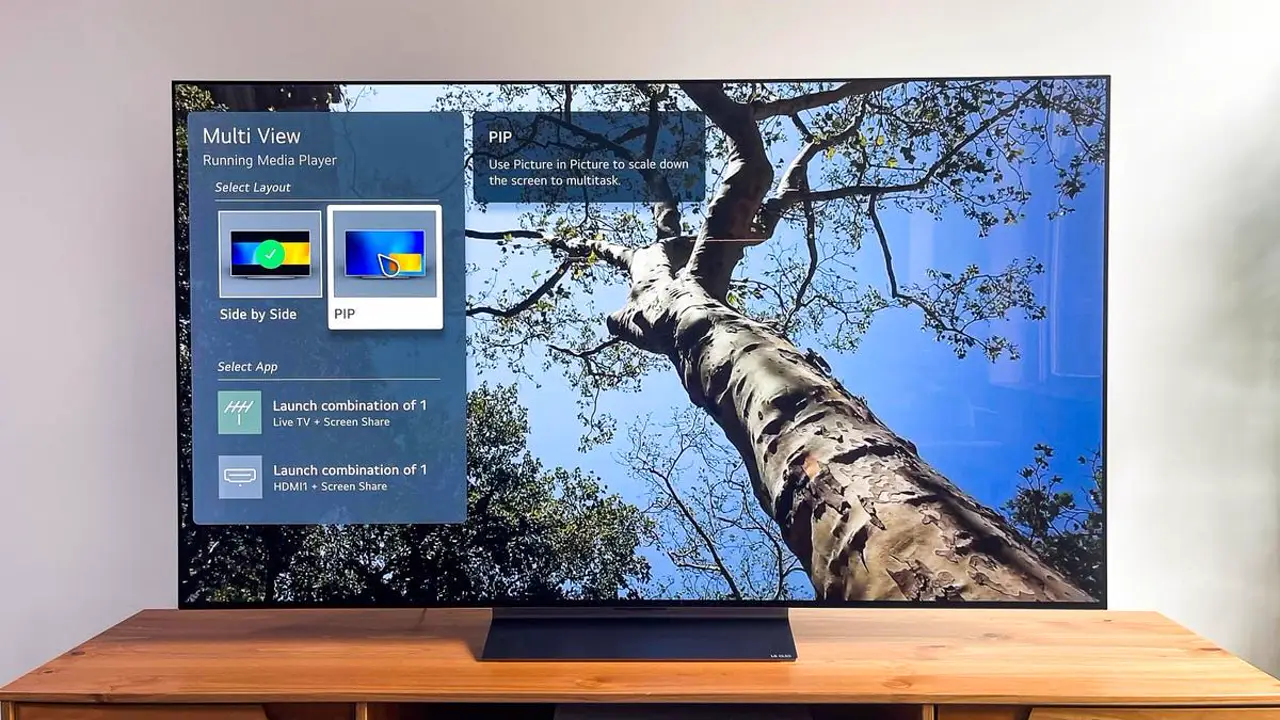
Picture in picture shrinks the video into a small window in a corner while you browse the TV home screen or another app. It suits keeping an eye on a live stream or a long talk while you check something else. The window follows the usual Android TV rules: press home to shrink it, tap it to return, and close it from the window controls.
When it actually helps
It helps when a talk runs long and you want to check the time, the weather, or another app without losing the thread. It helps less than you expect for films, because a small window is a poor way to watch a film. Use it for audio first content, where the sound carries the meaning, and leave the big screen for everything else.
Setting it up
Open Settings in SmartTube and look for the background play options, then make sure the TV allows picture in picture for the app in the TV settings, under Apps, then SmartTube, then Picture in picture. Both switches matter: the app switch allows it, and the TV switch permits it. If the window never appears, the TV switch is usually the one that is off.
Audio only evenings
Some evenings are audio evenings: a podcast while cooking, a talk while tidying, music while the room winds down. Start the video, let the sound carry, and turn the TV screen off if the TV allows it, which saves power and keeps the room calm. SmartTube keeps playing, and the remote pause button still works from the sofa.
The limits on a TV
Android TV limits background play more than a phone does, because a TV is expected to show one thing at a time. Some TVs pause the video when you leave the app, no matter the setting, and some close the small window when the TV sleeps. If background play refuses on your set, the TV is enforcing its own rule, and the honest fix is to keep SmartTube in the foreground for video and use it for audio only when the TV allows.
A sane default
Leave background play on for talks and music, and do not expect it to rescue a film you keep leaving. The big screen earns its keep by being watched, and the small window is a convenience for the moments between, not a second screen. The playback speed guide pairs well here: a talk at 1.25x finishes before the evening does.
Conclusion
Background play and picture in picture in SmartTube suit audio first evenings: talks, podcasts and music that keep going while you do something else. Set both switches on, use the small window for the in between moments, and keep the big screen for the watching that deserves it.
Quick Answers
Does SmartTube support background play?
Yes, within what Android TV allows. Audio keeps playing when you step away, and picture in picture shrinks the video to a corner window.
Why does picture in picture not appear?
Check the TV settings: Apps, then SmartTube, then Picture in picture must be allowed, as well as the option inside SmartTube settings.
Can I listen with the TV screen off?
On many TVs yes, for audio content like talks and music. Start the video, then turn the screen off if your TV allows it.
Does background play work for films?
It keeps the audio going, but films deserve the big screen. Background play suits talks, podcasts and music best.